Set up notifications for a team
Once you follow a team, you can turn on score alerts so Fanager pings you when their games update. The control is a single bell icon on the team's row in your Following list — one tap toggles it on or off.
Before you start
- You need a Fanager account — see Sign up and verify your email.
- You're already following at least one team. If not, follow one first — see Browse and follow a team.
- iOS push permission granted. The app asks the first time you turn a bell on. If you said no earlier, you'll need to flip Fanager back on in iOS
Settings→Notifications.
Steps
-
Open the
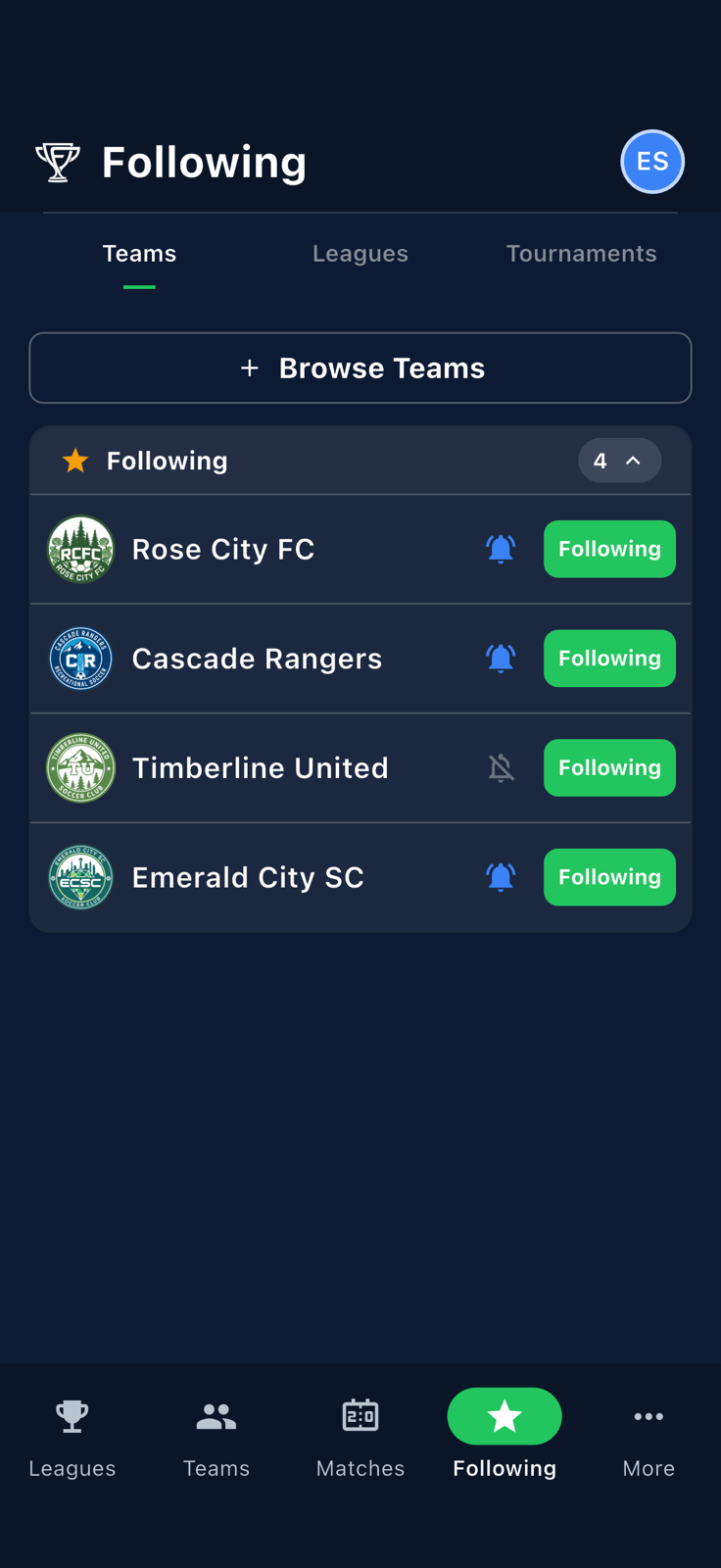
Followingtab and switch to theTeamssub-tab. Each team you follow shows a card with a bell icon on the right. A bell with a slash means alerts are off; a solid bell means they're on.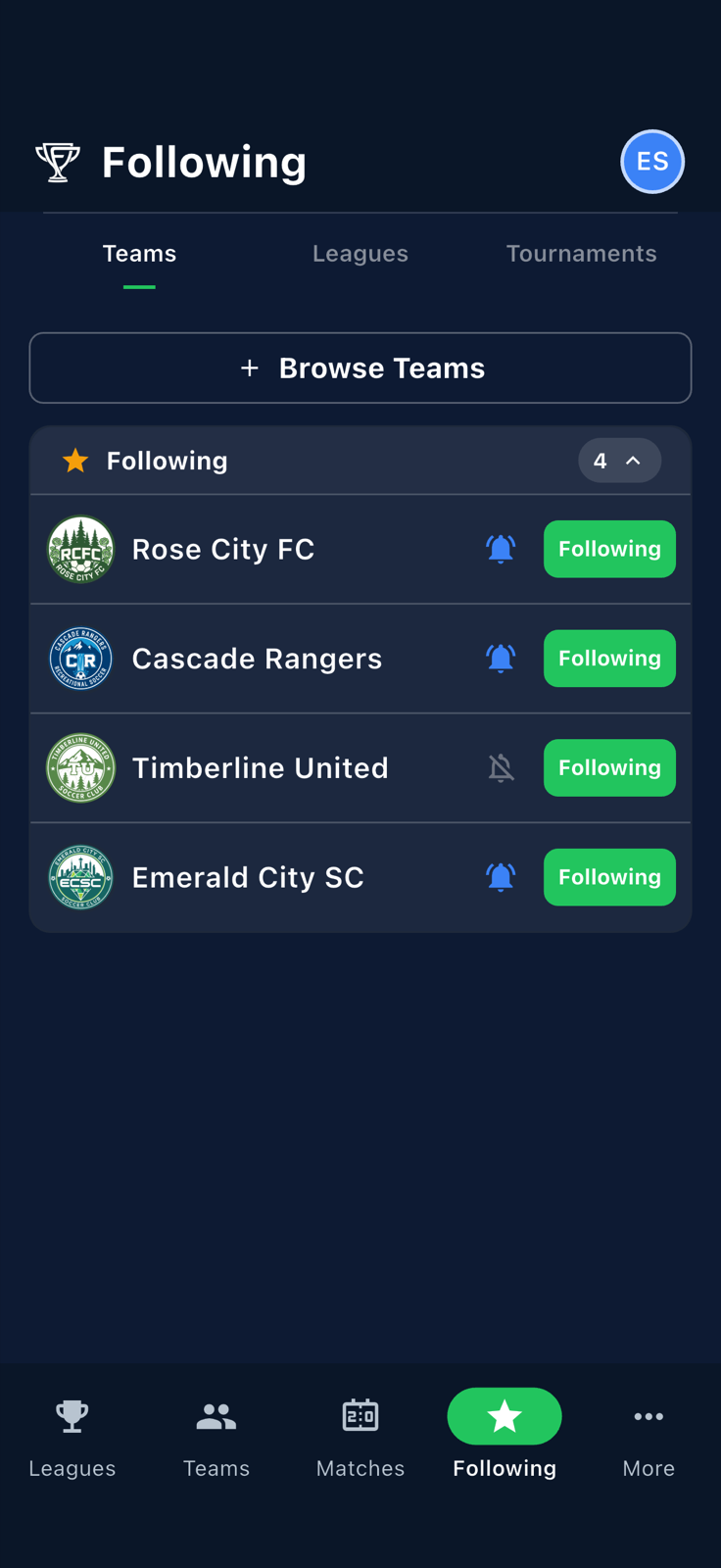
Your followed teams in Following → Teams. The bell icon sits on the right of each row. -
Pick the team you want alerts for. Note the current state of its bell — that tells you whether alerts are on or off right now.
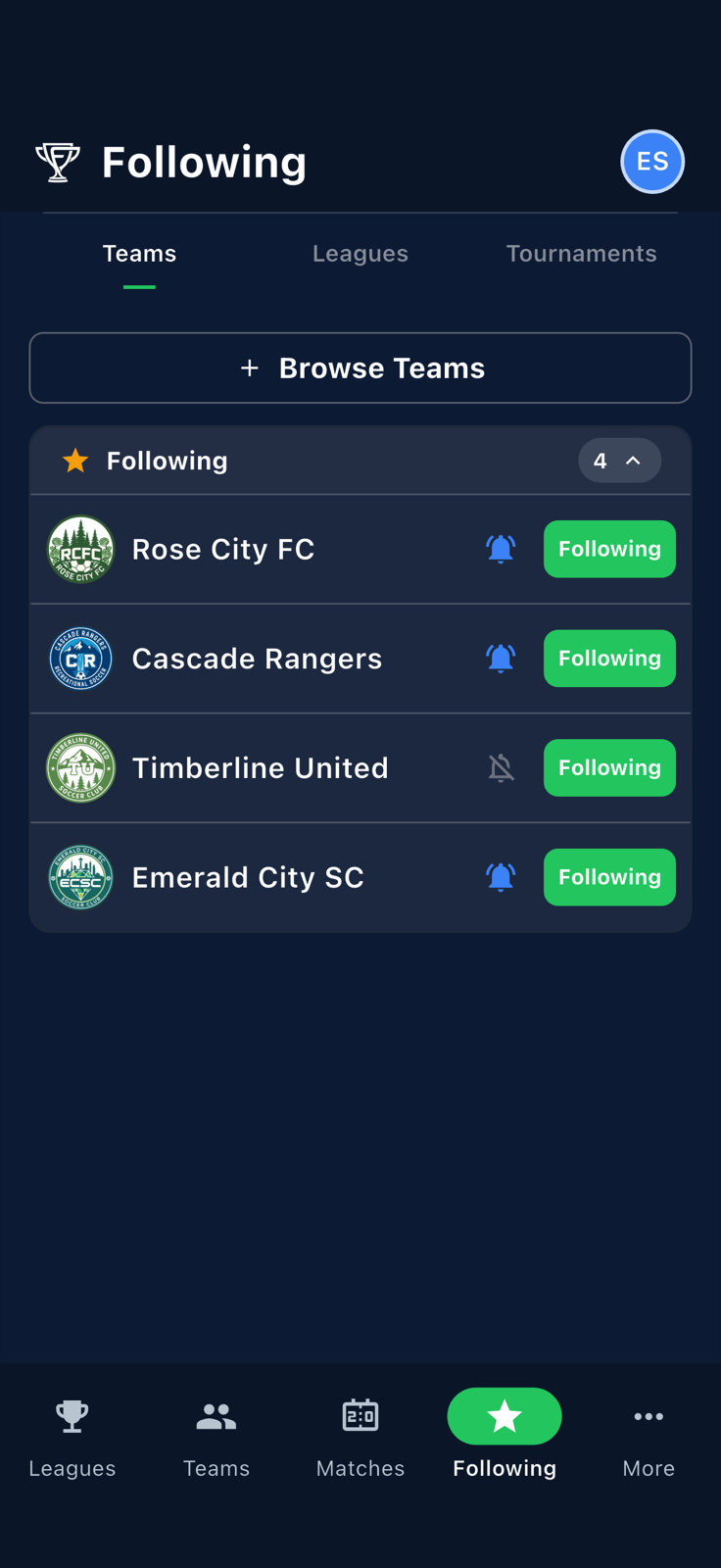
The bell on a single team card. Solid = alerts on, slashed = alerts off. -
Tap the bell. The icon updates immediately to show the new state. The first time you turn one on, iOS may ask permission to send notifications — tap
Allow.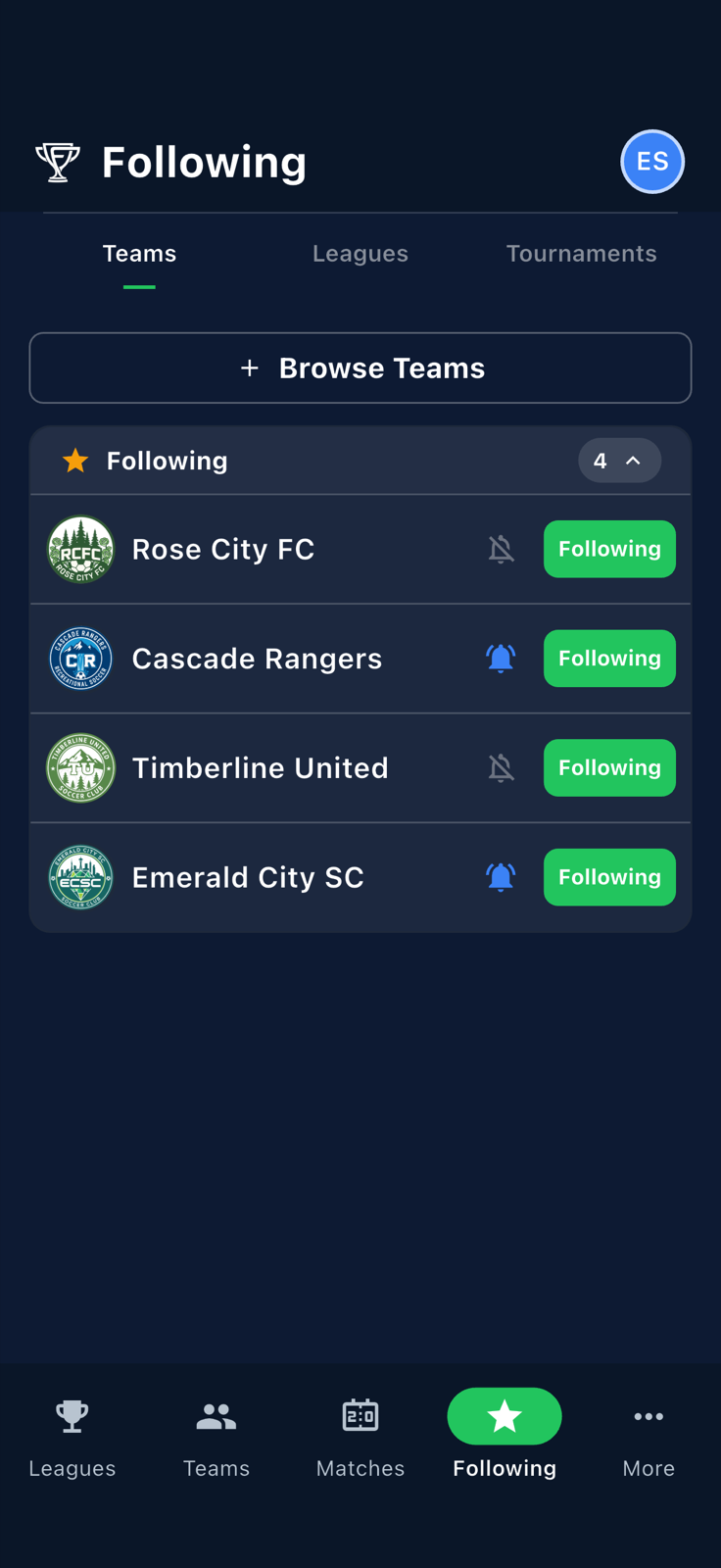
After tapping the bell, its state flips. No menu, no confirmation — one tap commits. -
Your preference is saved to your account, not just to this device. Close and reopen the app — the bell stays in the state you set.
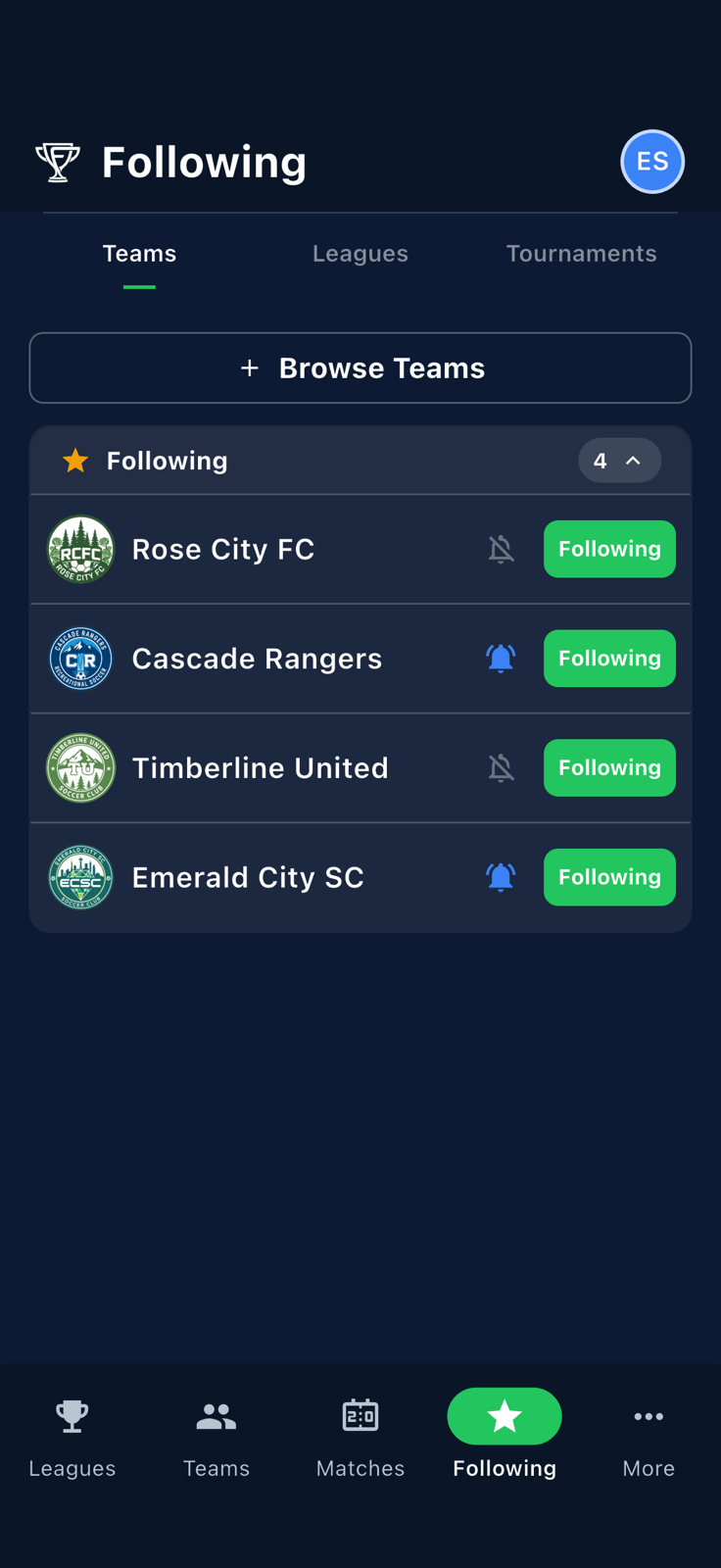
After a relaunch the bell state is preserved — it's stored on your account, not just locally. -
To turn alerts back off (or on, depending on where you left off), tap the bell again. Same one-tap commit. You can do this as often as you like — there's no penalty for toggling.
Toggle again to flip back. There's no limit and no confirmation.