Bulk-assign a field to multiple games
When a venue's field works for most of your season, you don't have to assign it game by game. Pick several games at once, choose a field, and Fanager writes the assignment to all of them in one call. You can still override individual games afterward — see the related guide below.
Before you start
- You must own the league whose schedule you're editing — see Account types.
- The season needs games on the schedule already. If the schedule is empty, run Generate a season schedule first.
- At least one venue with at least one field must exist on the league. If not, see Manage venues and fields.
Steps
-
Open the season's schedule. The quick-stats chip at the top reads
0 / 8 ASSIGNED(or whatever your numbers are) — the first number is how many games have a field, the second is the total.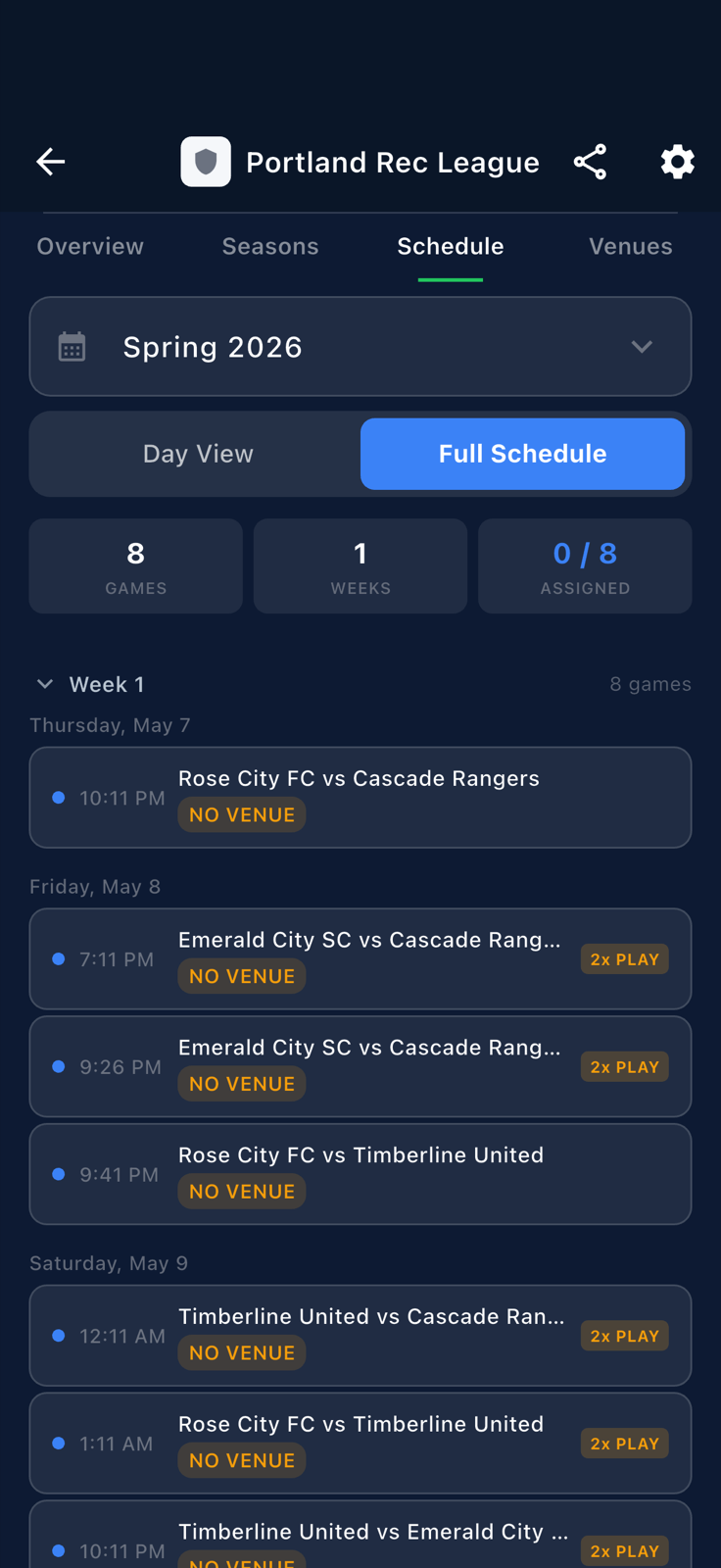
The season schedule entry point. Note the 0 / 8 ASSIGNEDchip. -
Trigger bulk-assign mode. A new selection bar appears at the top of the schedule.
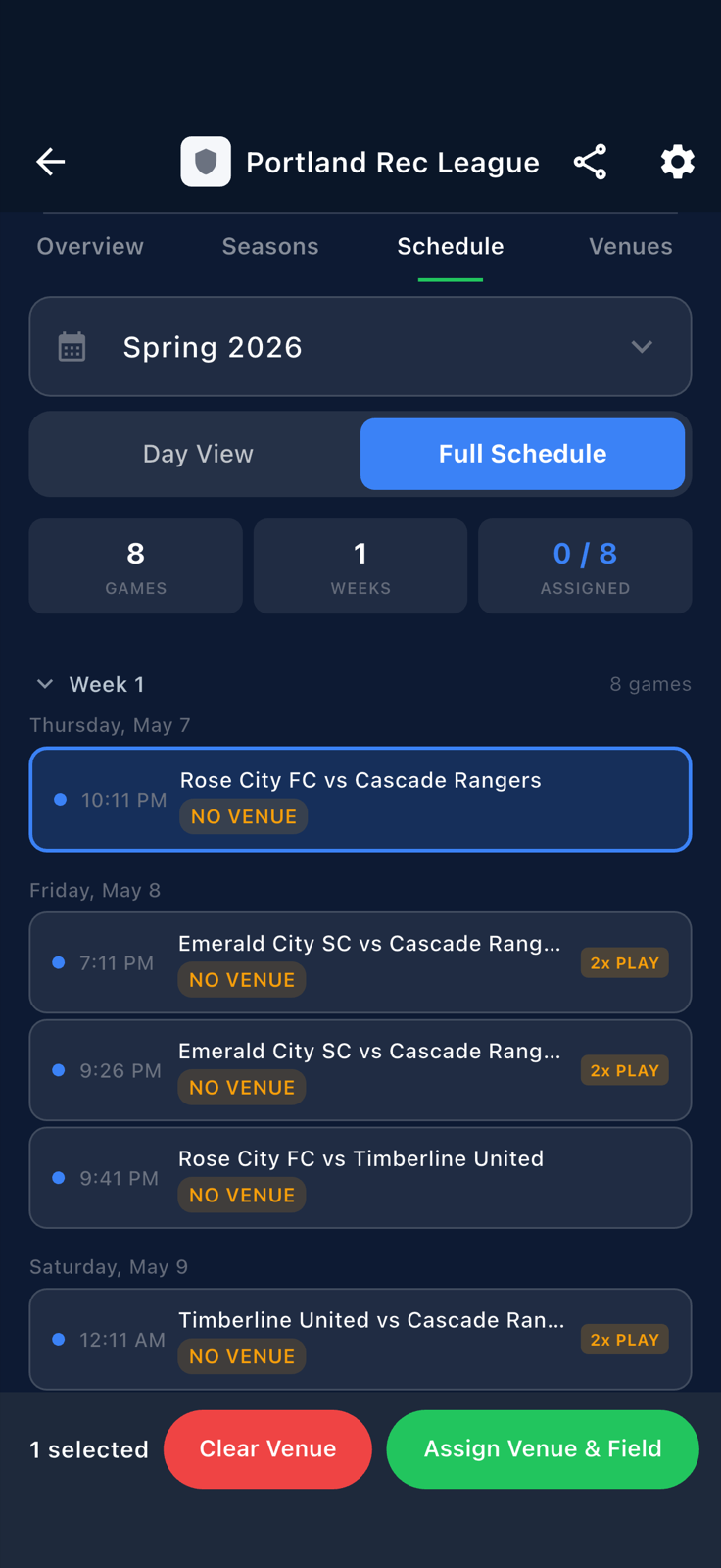
Bulk-assign mode armed. Game rows now accept checkbox taps. -
Tap each game you want to assign. The selection counter updates as you go.
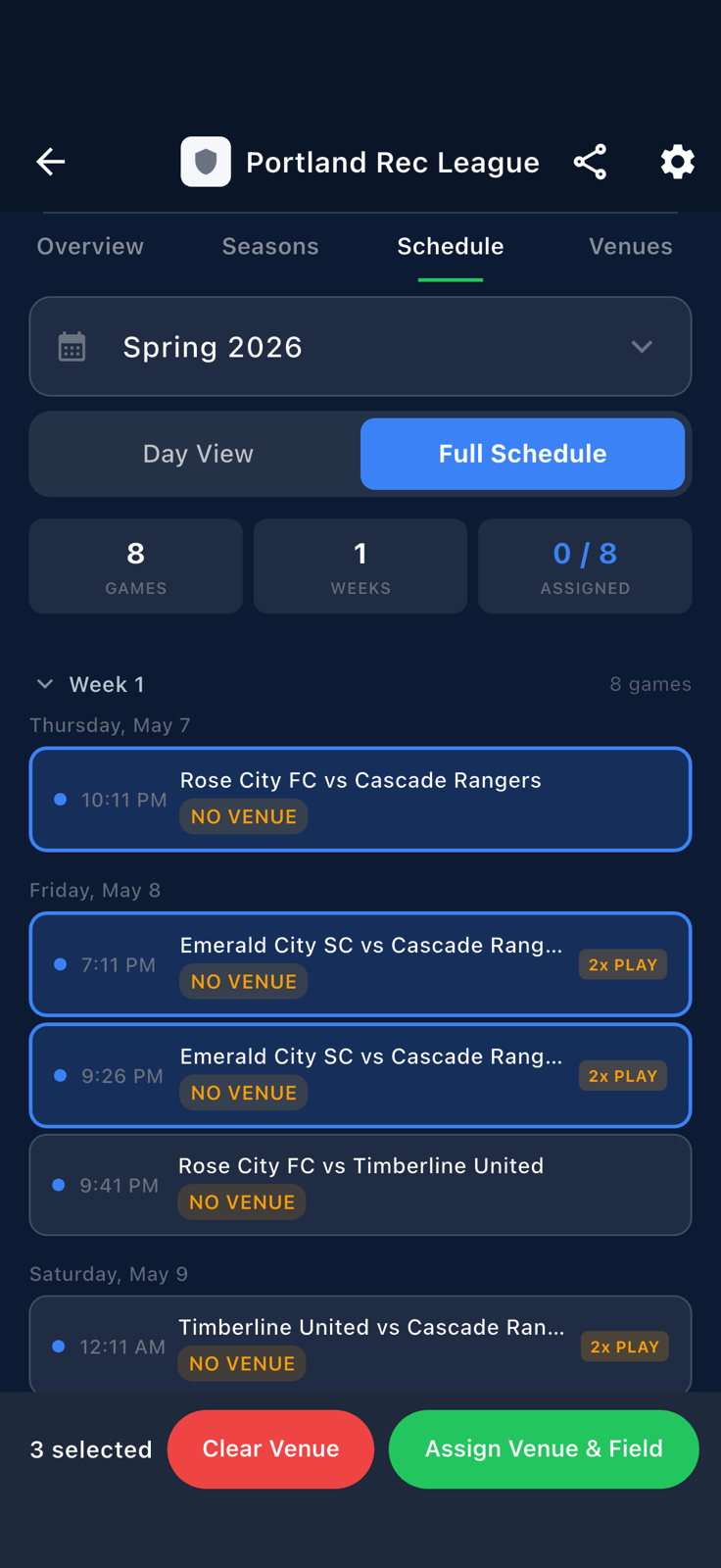
Tap each game to add it. Here three are picked. -
Open the field picker. It lists every venue you've added, with each venue's fields nested beneath it.
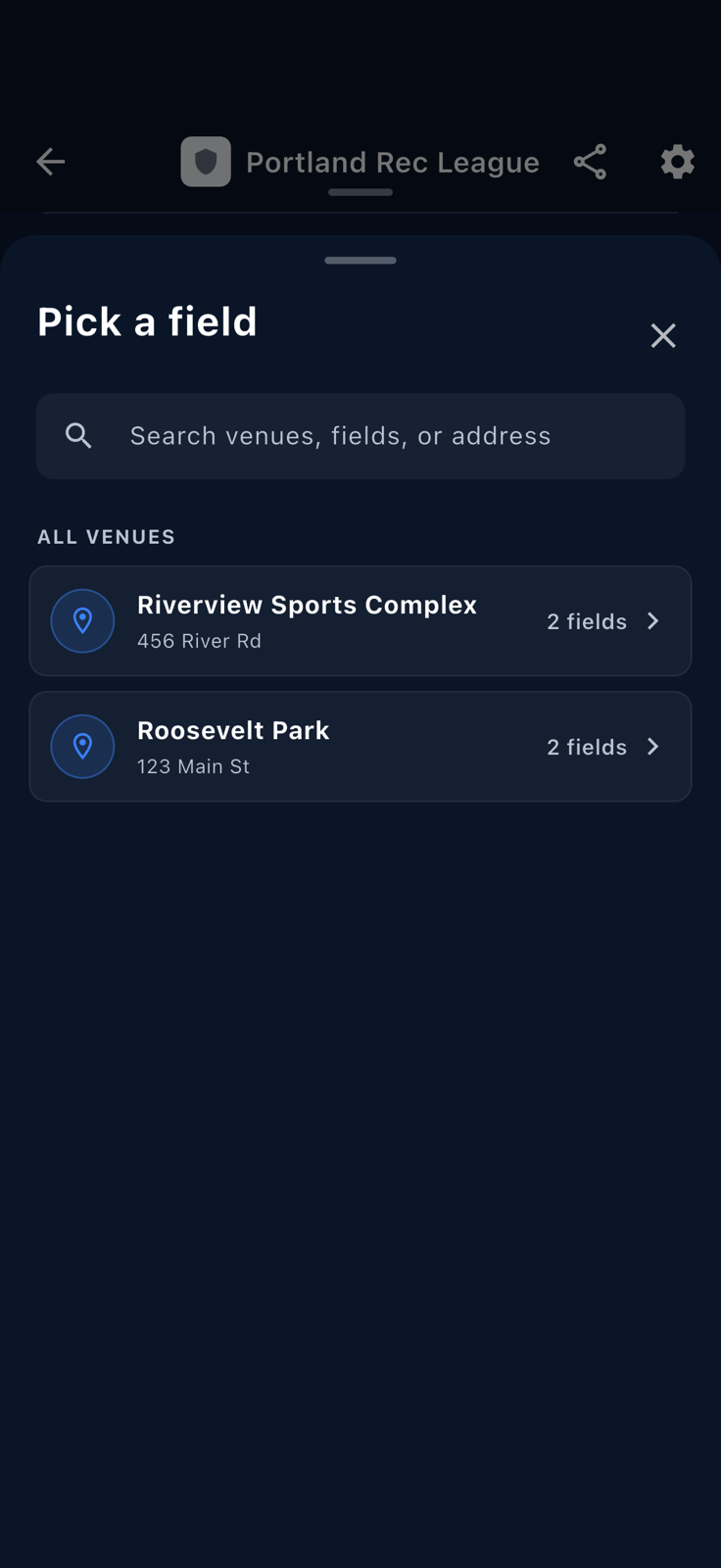
The field picker lists every venue + field on your league. -
Expand a venue if it has multiple fields, then tap the field you want. Here it's
Roosevelt Park · Field 1. Fanager applies the field to every selected game in one call.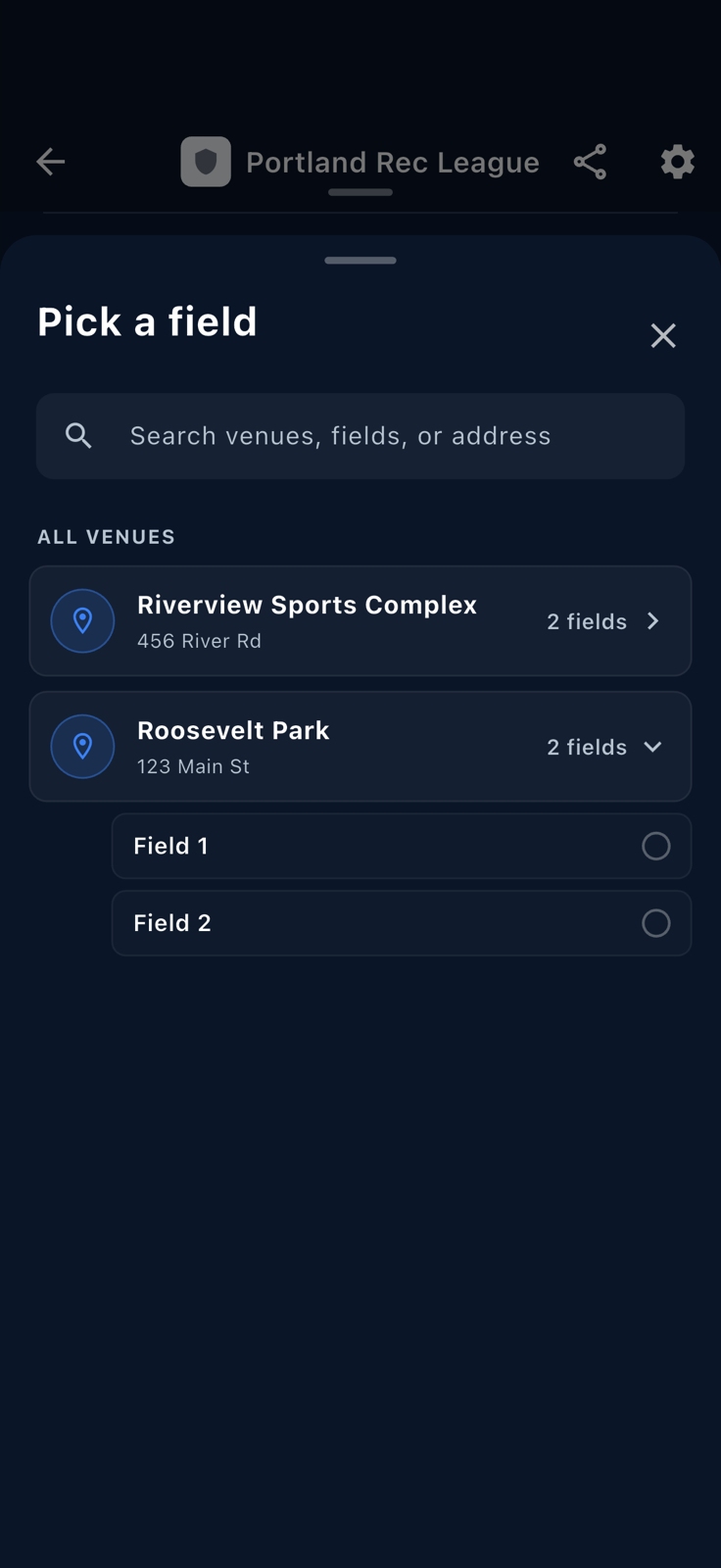
Pick a specific field. The whole selection inherits it. -
The schedule returns to its normal view. Every game you selected now lists the new field on its row, and the quick-stats chip jumps to reflect the new assigned count.
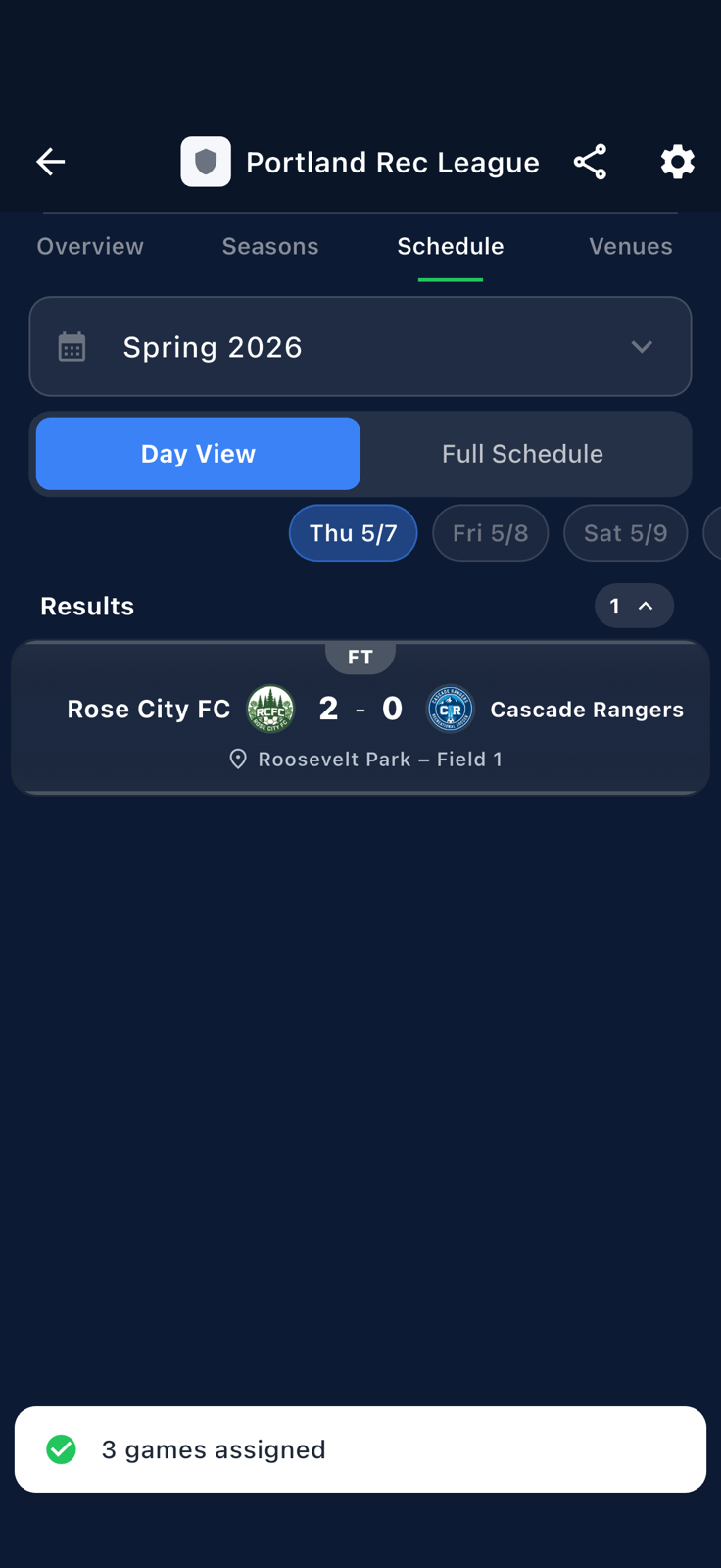
Each previously-selected game now reads Roosevelt Park · Field 1.