Claim a player via invite code
Your team's manager set up a roster spot for you ahead of time, but it's still a placeholder ("phantom") until you link your Fanager account to it. This guide shows how to use the manager's invite link to claim your spot, so your name, stats, and RSVPs all live under your own account.
Before you start
- You have a Fanager account — see Sign up and verify your email.
- A team manager shared an invite link with you. It looks like
https://fanager.app/c/XXXXXXXXor a short code. - The roster already has a placeholder entry for you. (If it doesn't, ask the manager to add one before you open the link.)
Steps
-
Open the invite link the manager sent. Fanager opens to your usual home tab — the join screen comes up next.
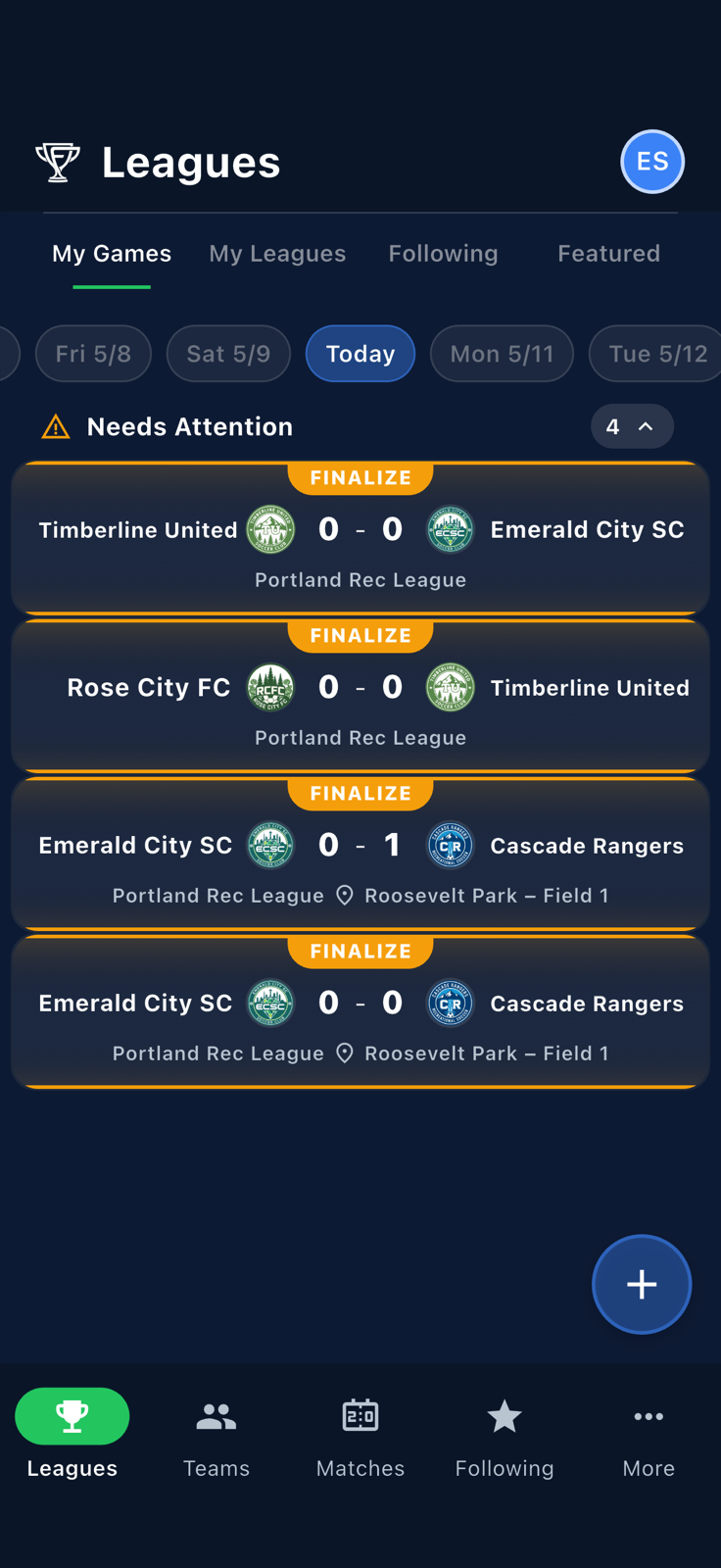
The app open. The invite routes you to the join screen. -
The Join Team landing shows the team's name and the "How are you joining?" picker.
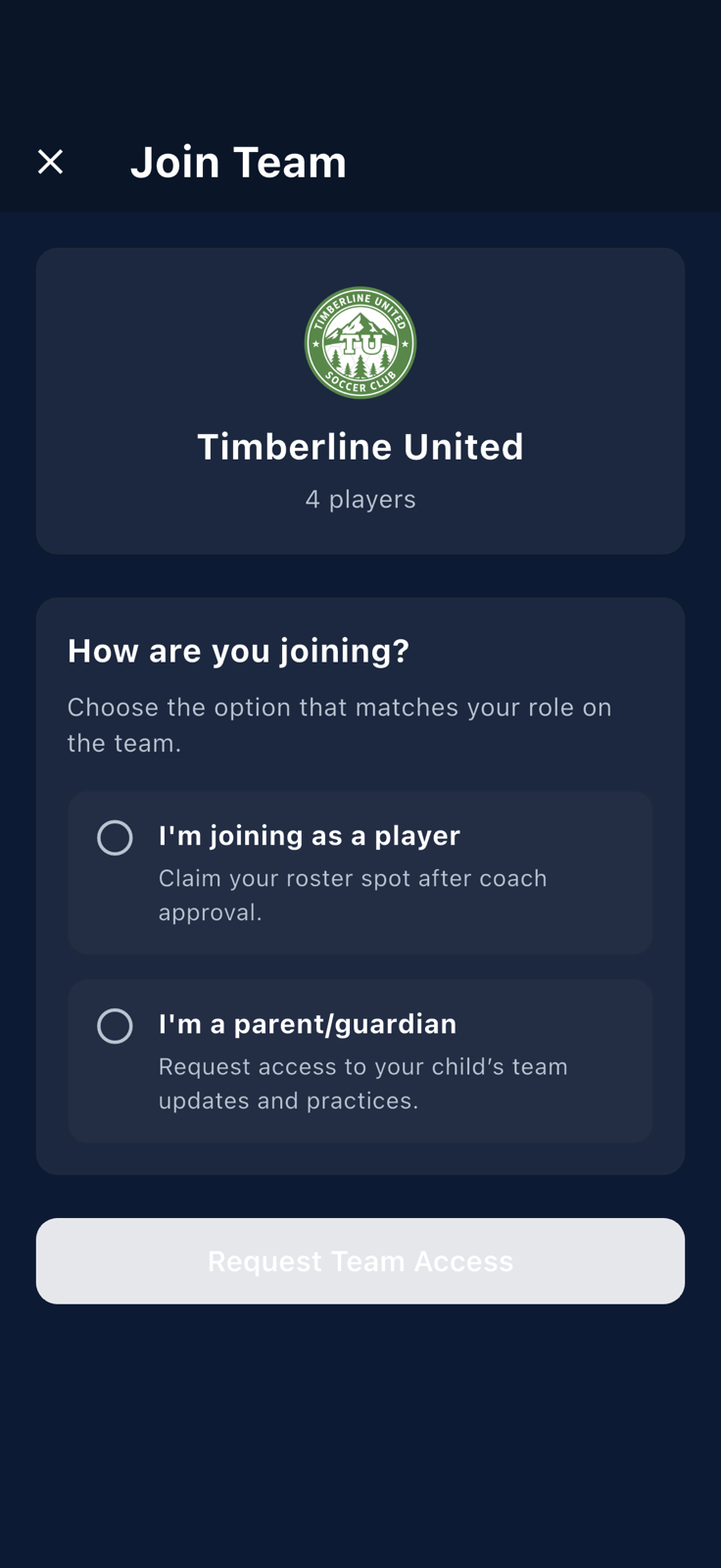
The intent picker. Pick the player option for yourself. -
Pick
I'm joining as a player. The page expands to show the team's phantom roster — the placeholder entries the manager added. Find your name.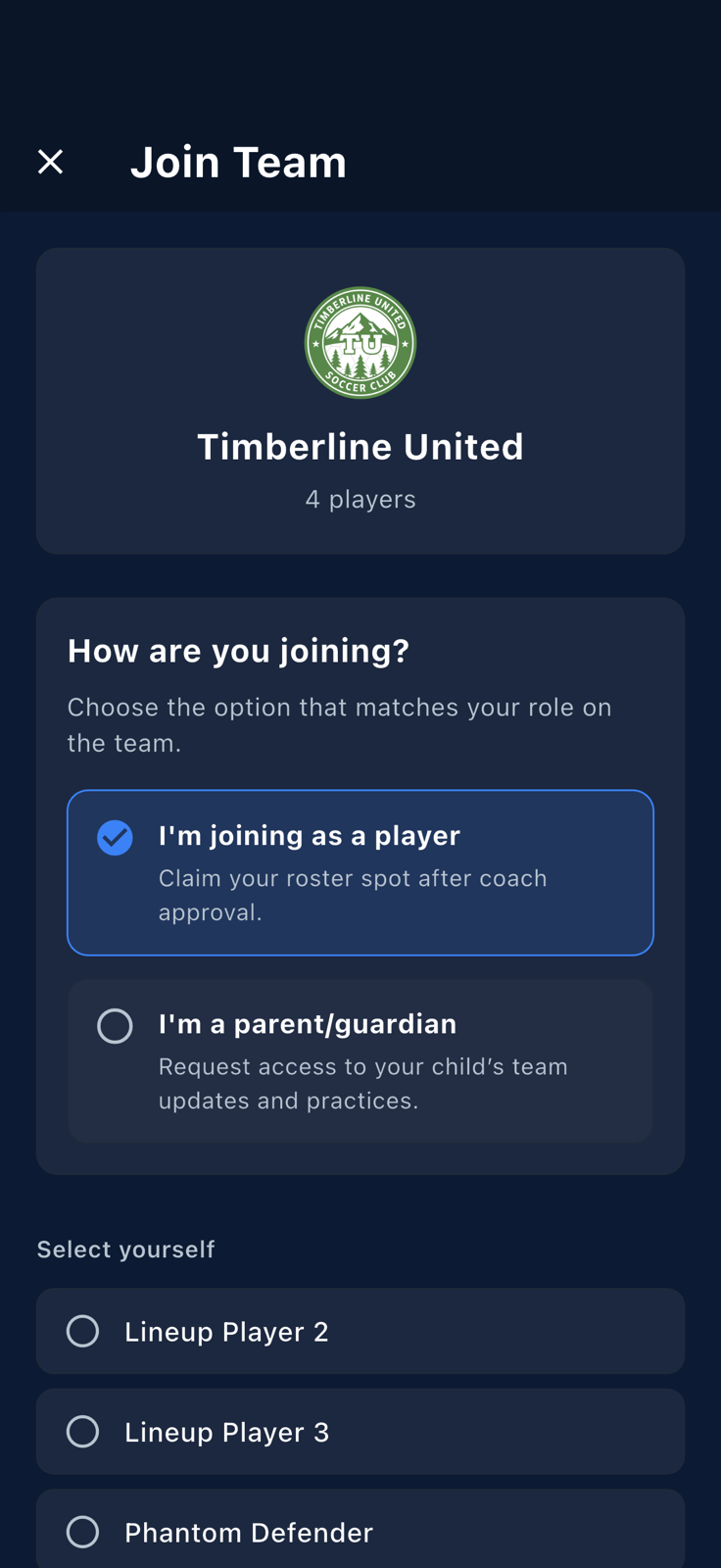
Phantom roster placeholders waiting to be linked. -
Tap the placeholder that represents you. It's highlighted and the submit button becomes active. Tap
Request Approval.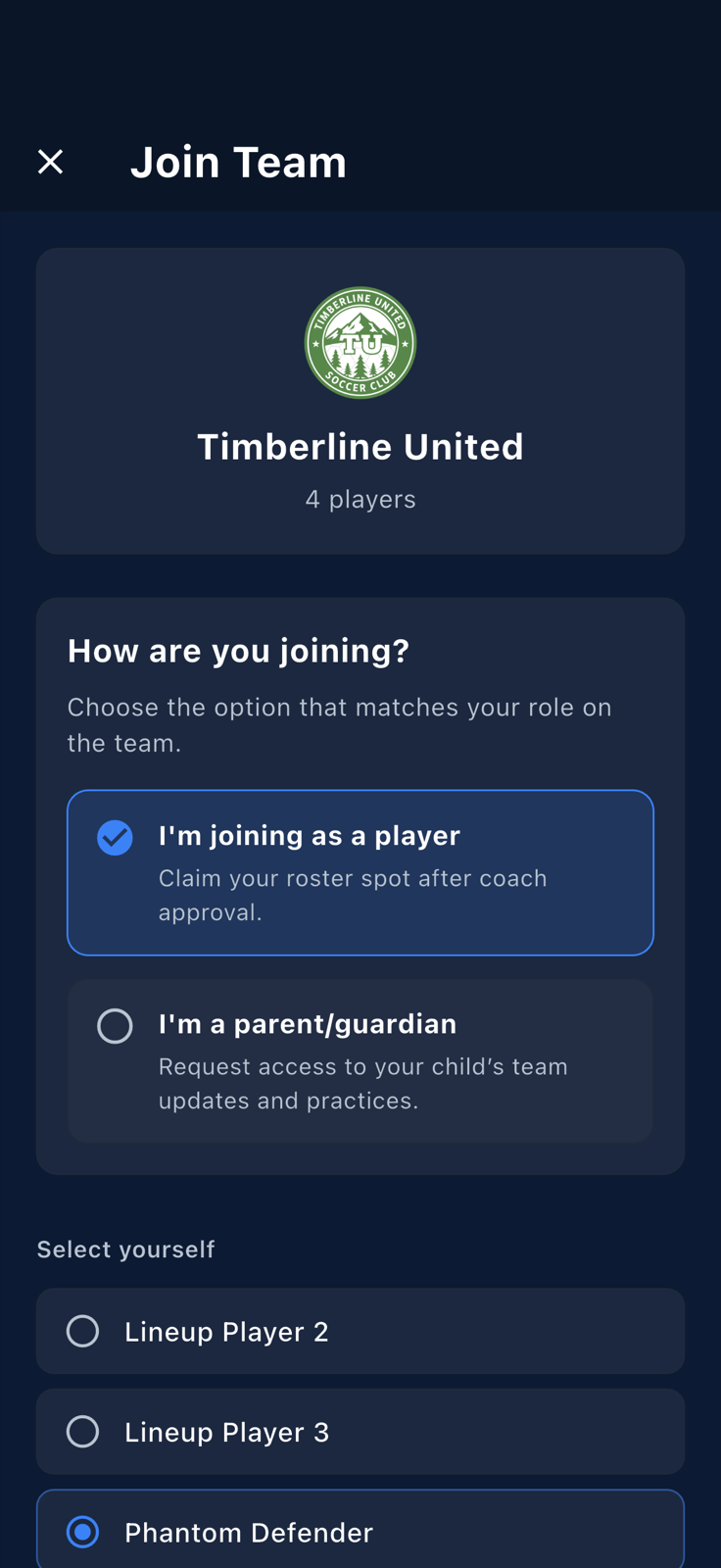
Your placeholder selected. Tap Request Approvalto submit. -
Fanager shows a
Request Sent!confirmation. The team's manager has to approve the claim — see Approve a player claim for what happens on their side.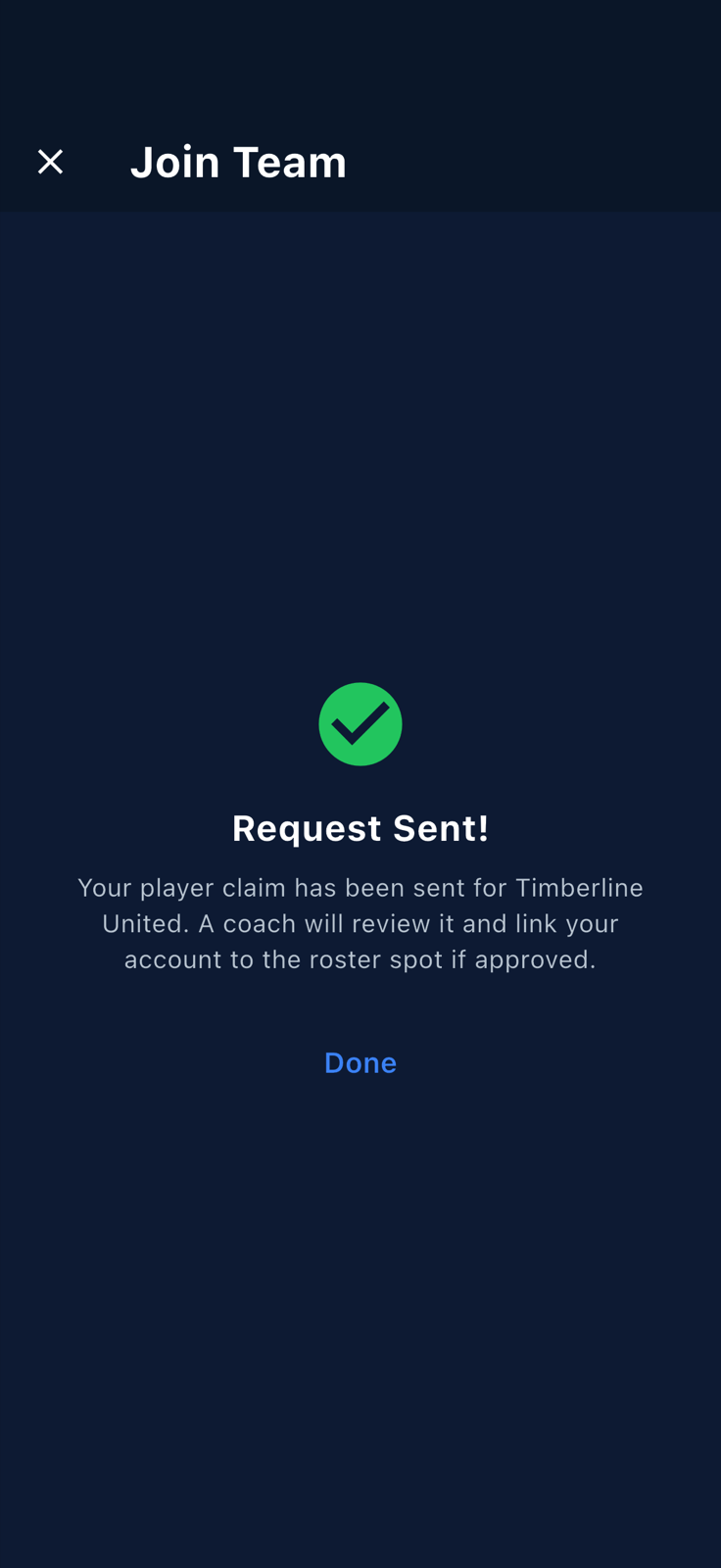
The Request Sent!confirmation. Manager is notified. -
You're back on the Teams tab. After the manager approves, the placeholder is replaced with your account; your name appears on the roster, and you can RSVP to games yourself.
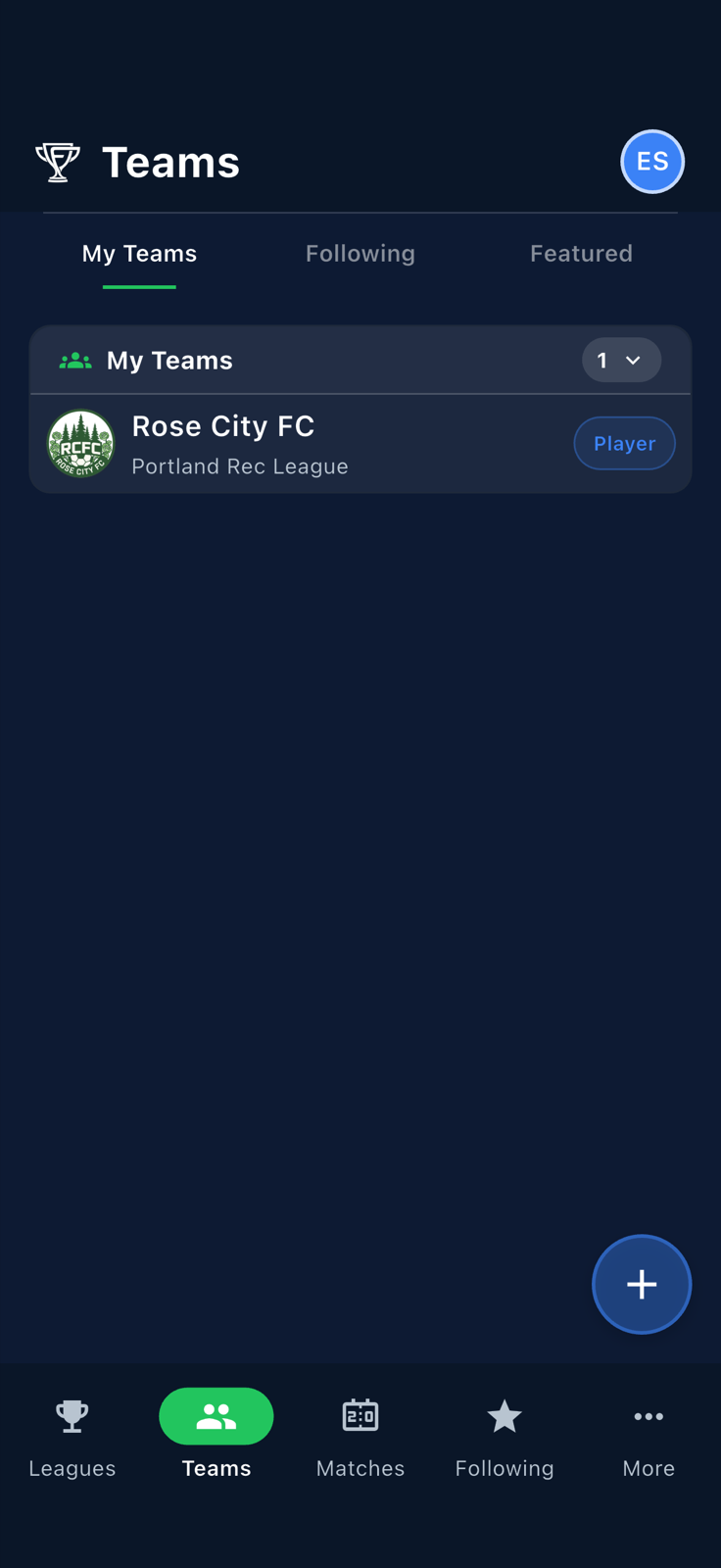
You're back on the Teams tab. Wait for the manager to approve.