Join a team via invite code
A team manager can share an invite link or code that lets you ask to join their team's community — as a player or as a parent/guardian linked to a player on the roster. This guide walks you through what you see when you open that link.
Before you start
- You have a Fanager account and you're signed in — see Sign up and verify your email.
- A team manager shared an invite link with you. It looks like
https://fanager.app/c/XXXXXXXXor a short code likeJN7l9DYm. - You know whether you're joining as a player yourself, or as a parent/guardian linking to a child or family member already on the roster.
Steps
-
Open the invite link the manager sent. Fanager routes you straight to the Join Team screen, which shows the team's name and badge plus a "How are you joining?" picker with two options:
I'm joining as a playerandI'm a parent or guardian.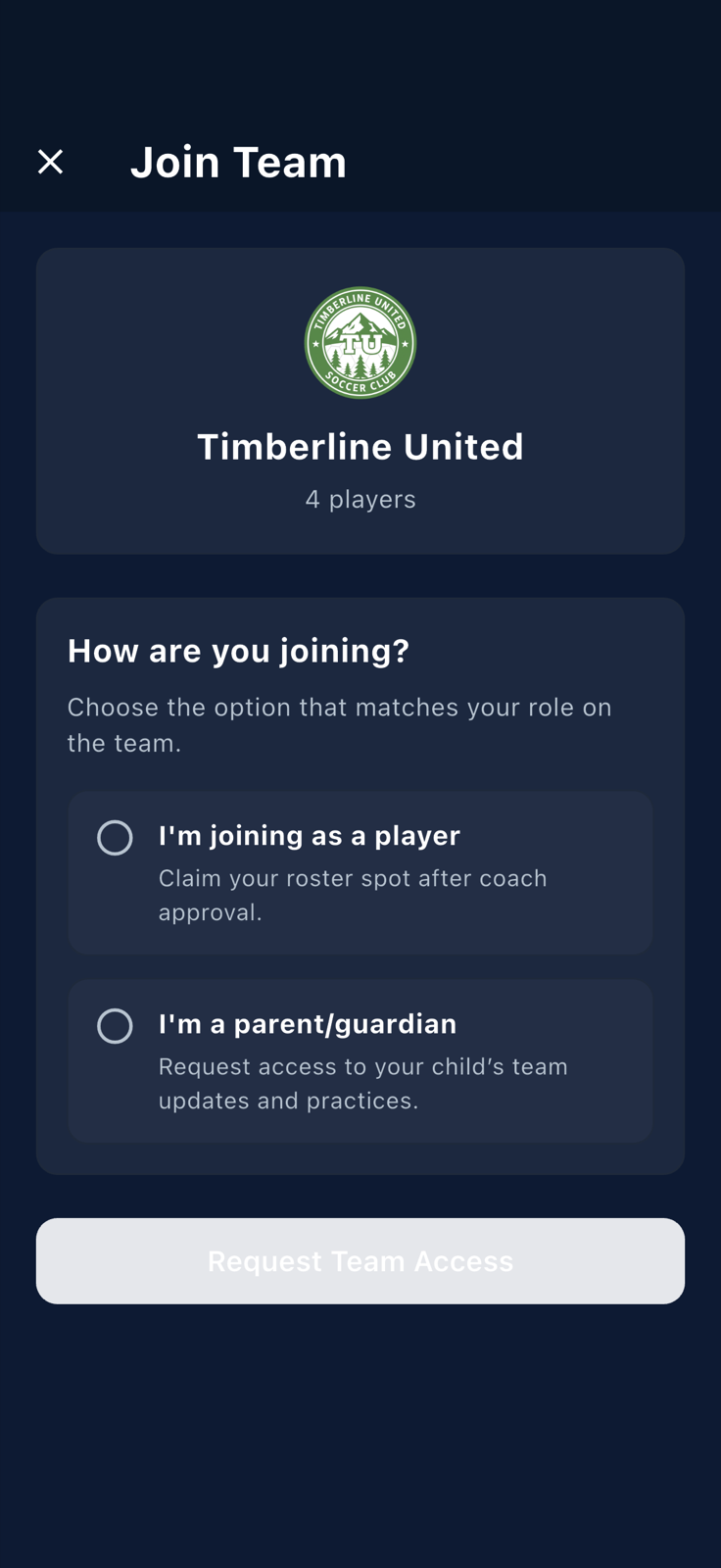
The Join Team screen. Pick the intent that matches you. -
If you're a parent or guardian, pick that option. The screen expands to show the team's roster of "phantom" players — placeholder names the manager added that haven't been linked to a real account yet. Find the player you're claiming for.
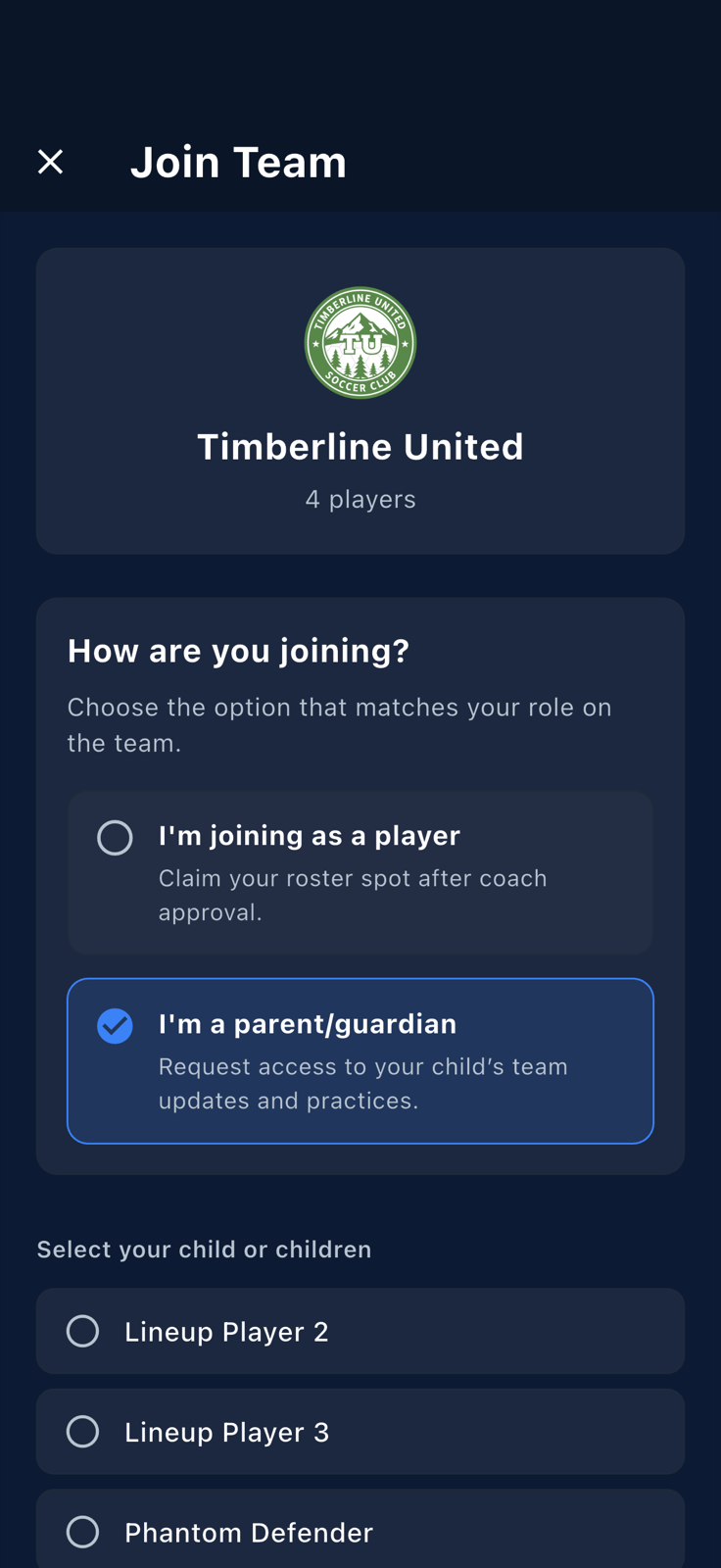
Phantom players the manager has added but not yet linked to accounts. -
Tap the player you're guardian for. The selection is highlighted and the submit button becomes active.
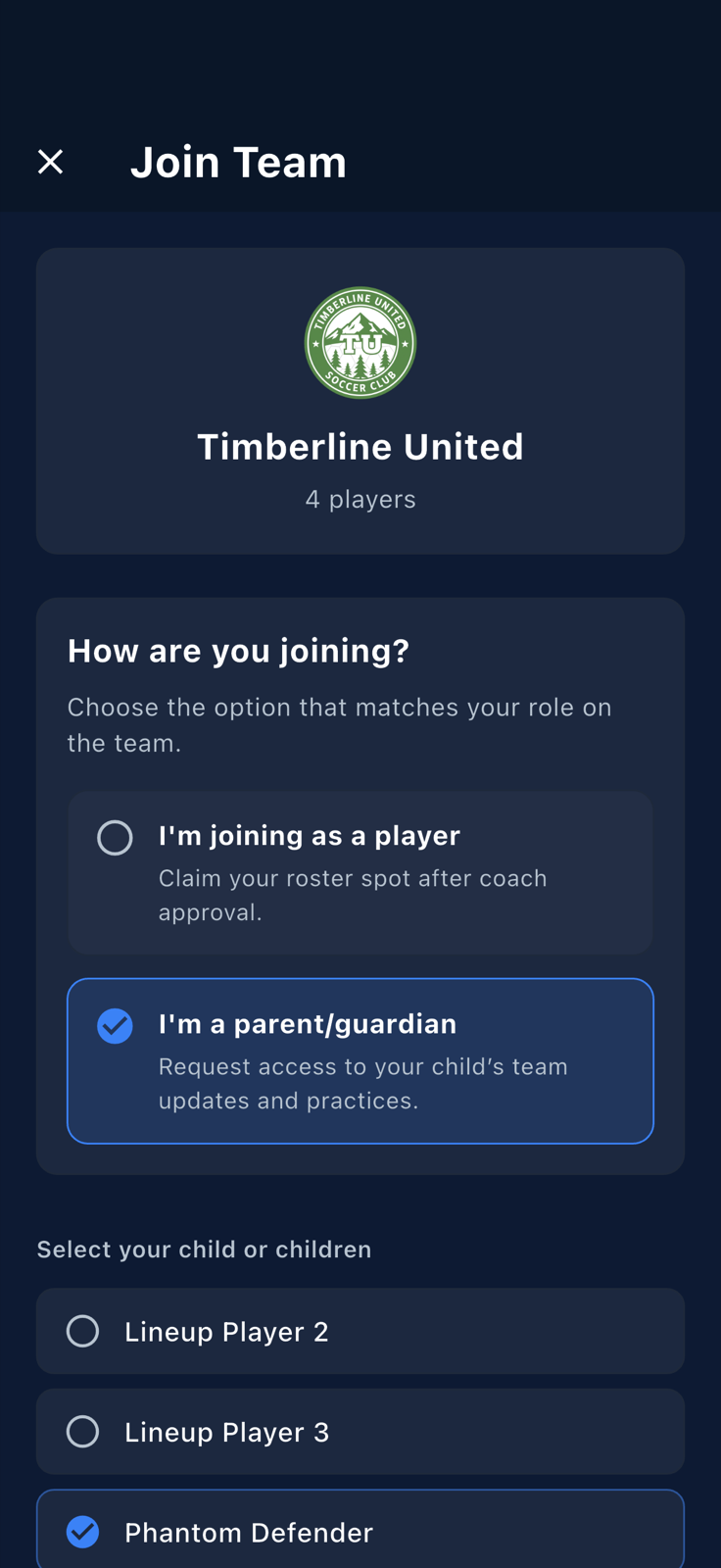
Player selected. Tap Request Team Accessto submit. -
Fanager shows a
Request Sent!confirmation. The team's manager now has to review and approve the link — see Approve a community join request for what happens on their side.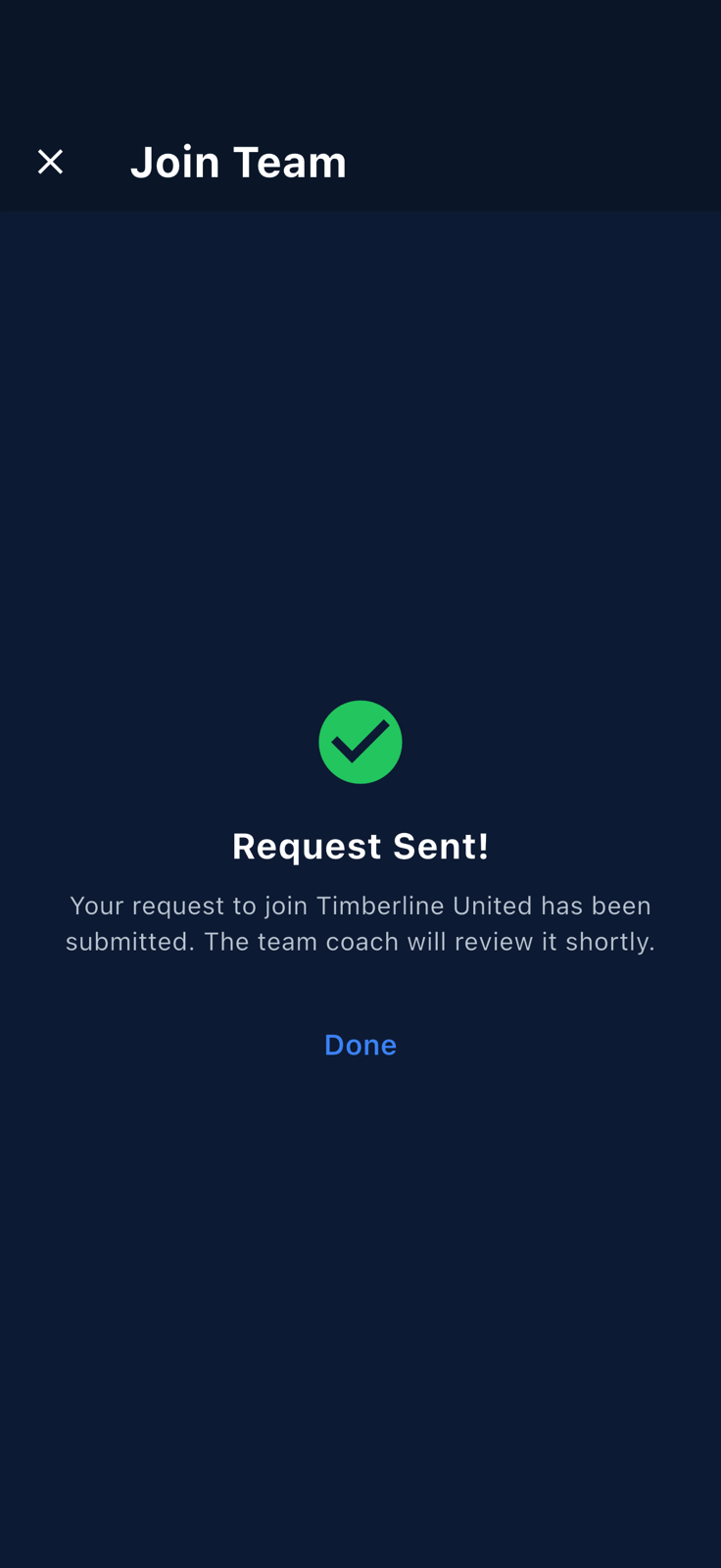
The Request Sent!confirmation. The manager is notified. -
You'll land back on the Teams tab. Until the manager approves your request you're not yet on the team's roster — keep an eye on push notifications, or check back on the team's page later.
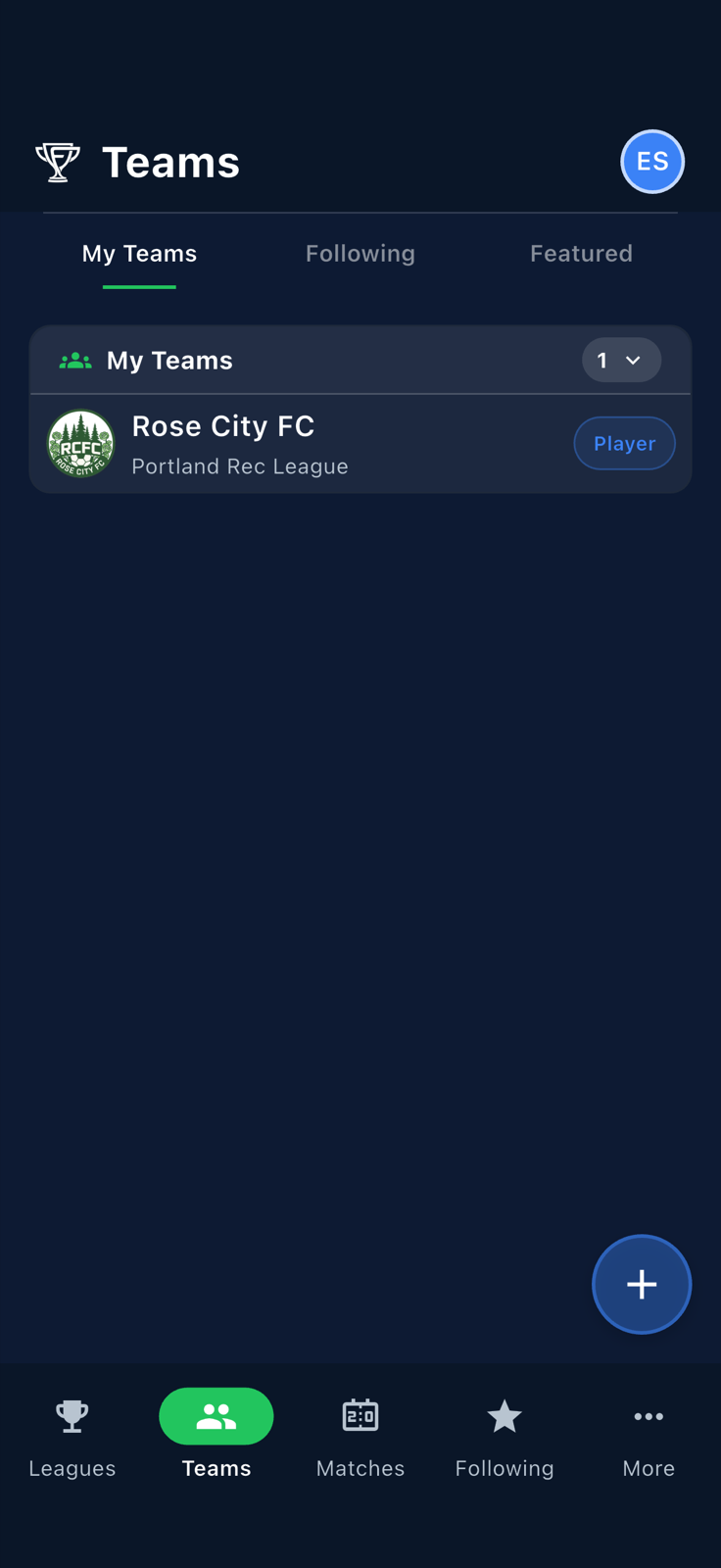
You're back on the Teams tab. Wait for the manager to approve.