Grant scorekeeper permission to another user
You don't have to record every match score yourself. Invite a trusted person — a coach, a club volunteer, even a parent who's always at the field — to be a scorekeeper. They'll be able to enter and finalize results in this league, but they can't change anything else. Inviting someone takes about a minute and an email address.
Before you start
- You must own the league — see Account types.
- You know the email of the person you want to invite. They don't need a Fanager account yet — they'll be prompted to create one when they accept.
- You've decided this person should record scores (not, say, manage venues — there's a separate permission for that you can grant the same way).
Steps
-
Open your league's Manage page and tap the green gear icon in the top-right to open the settings panel. Scroll down to the
STAFFsection. Right next to the header is anInvitebutton.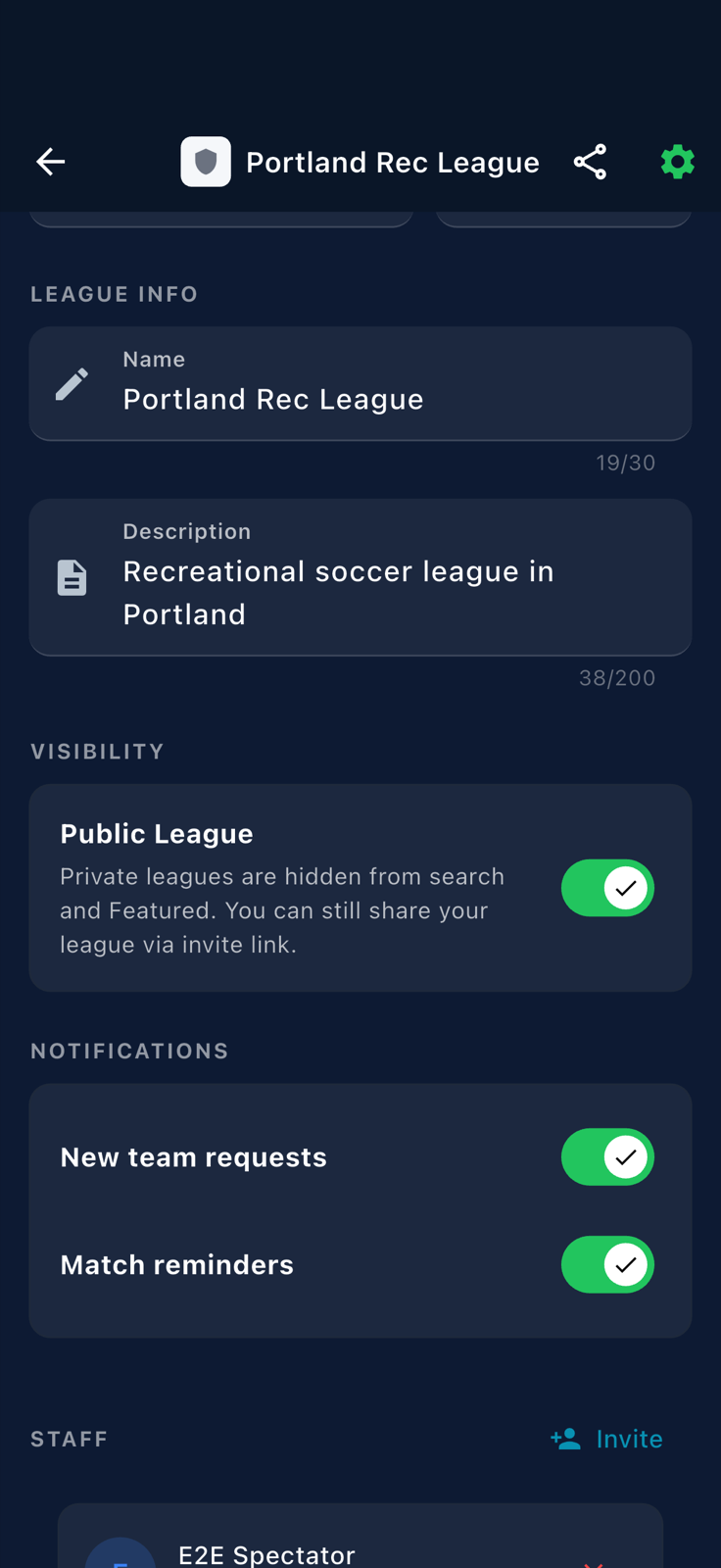
Settings panel for your league. The STAFFsection sits near the bottom. -
Tap
Invite. TheInvite Staffbottom sheet appears. Type the person's email address into theEmail addressfield, then tapSend Invite.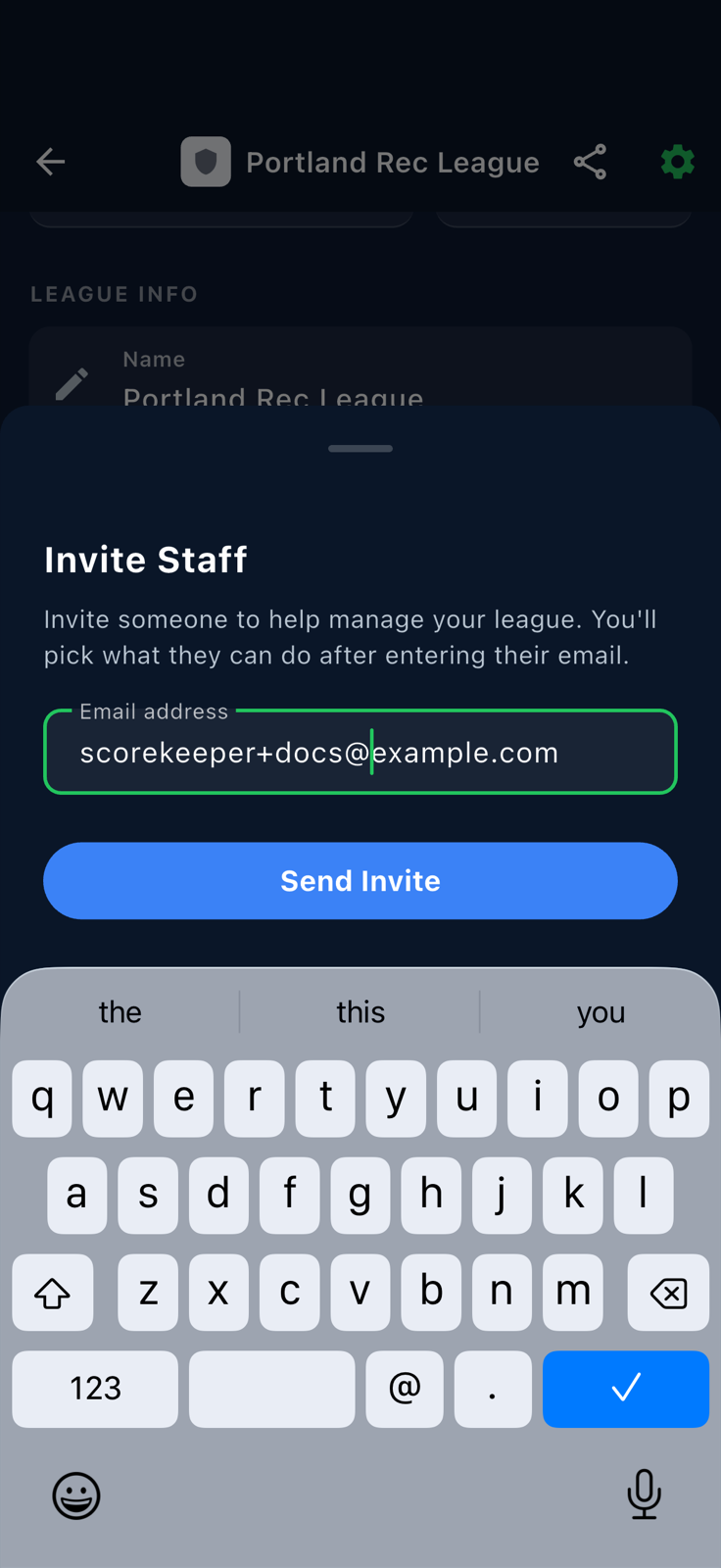
The Invite Staffsheet. The note above the field reads "You'll pick what they can do after entering their email." -
A second sheet opens —
Pick a permission— with two options:Score keeper(record match results, update scores during games) andVenue manager(create and assign venues + fields). TapScore keeper.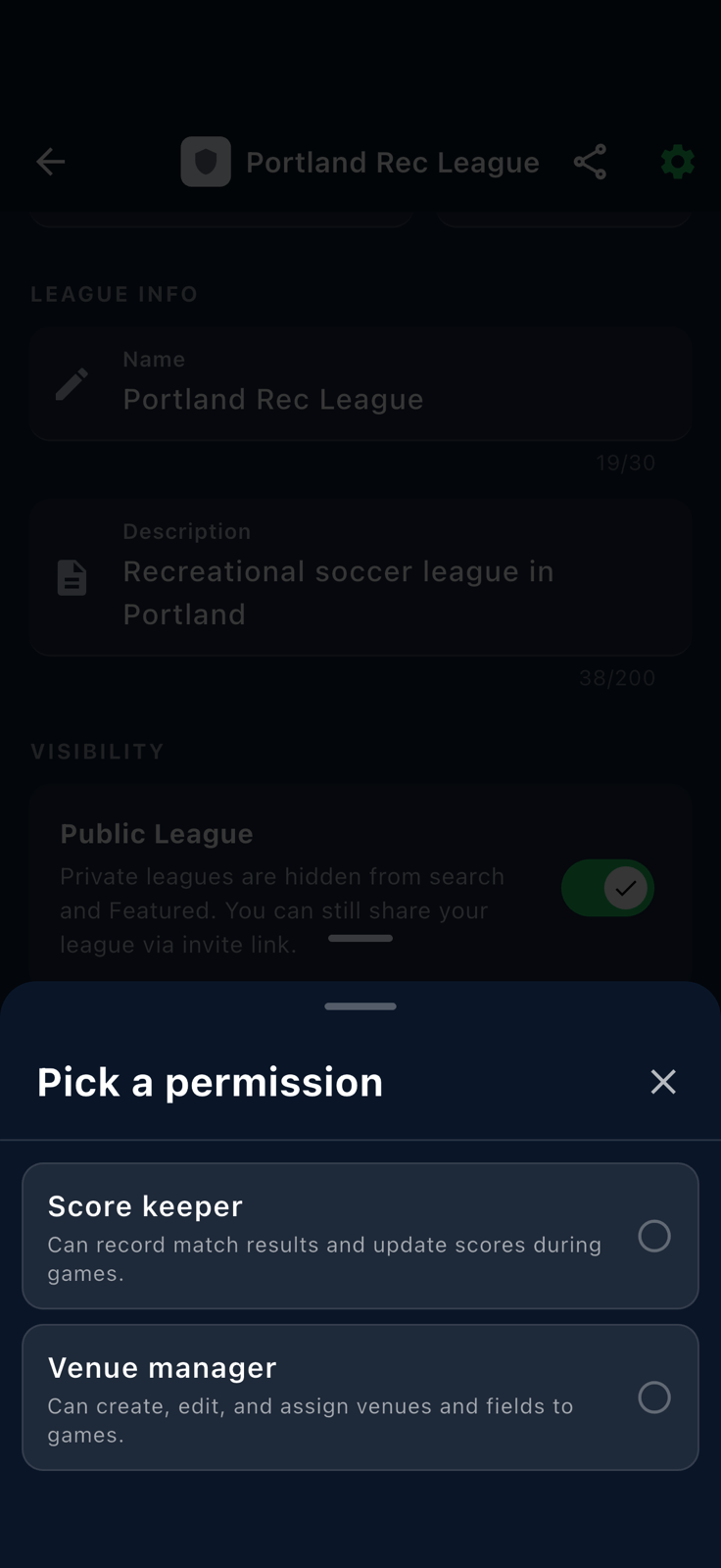
The Pick a permissionsheet. Each option lists what the role can do. -
Both sheets close and a confirmation banner at the bottom reads
Invitation sent to <email>. Fanager emails the recipient a link — there's no separate link to copy or share from this screen.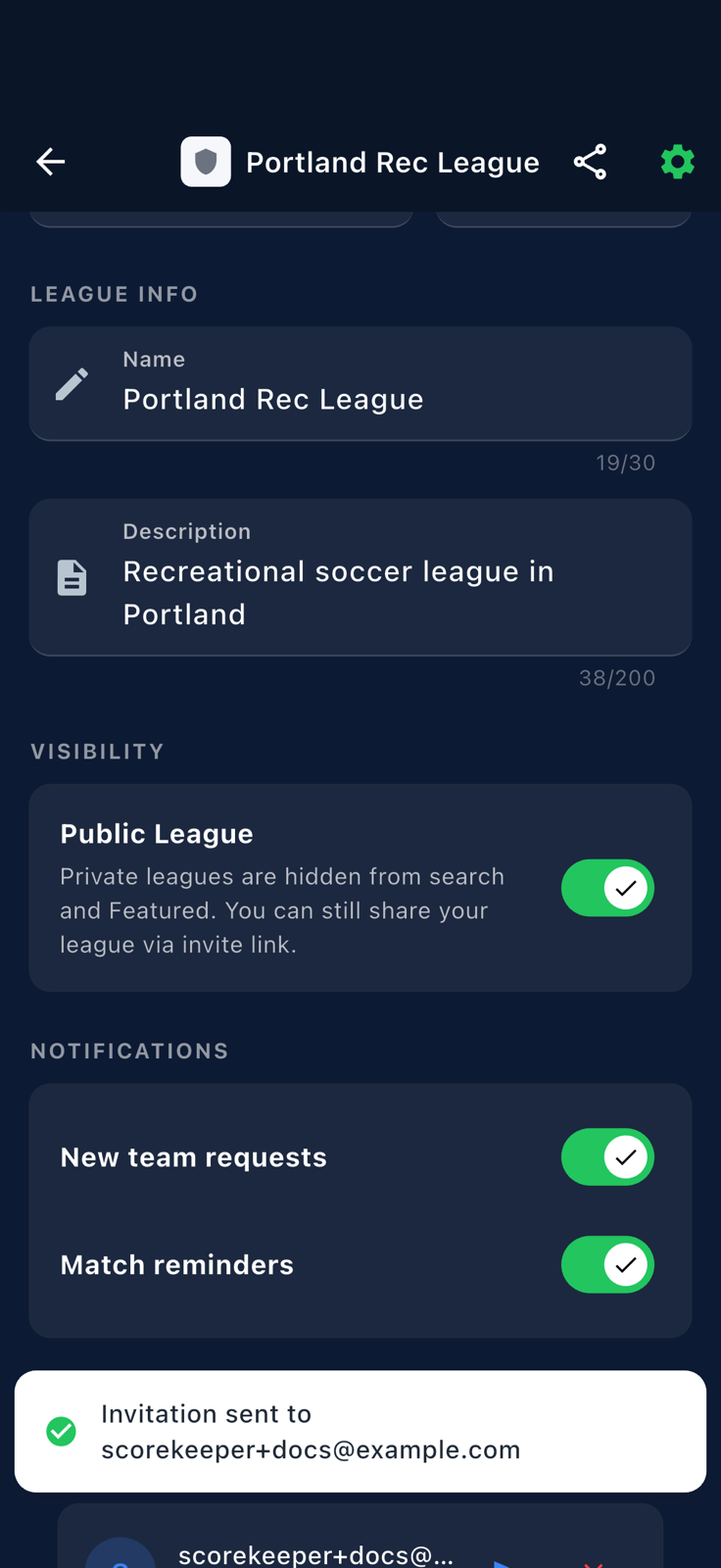
The success banner confirms the invitation went out by email. -
Scroll back to the
STAFFsection. The person you invited now appears in the list with aPendingbadge. Once they accept the email link, the badge flips toActiveand they can start recording results.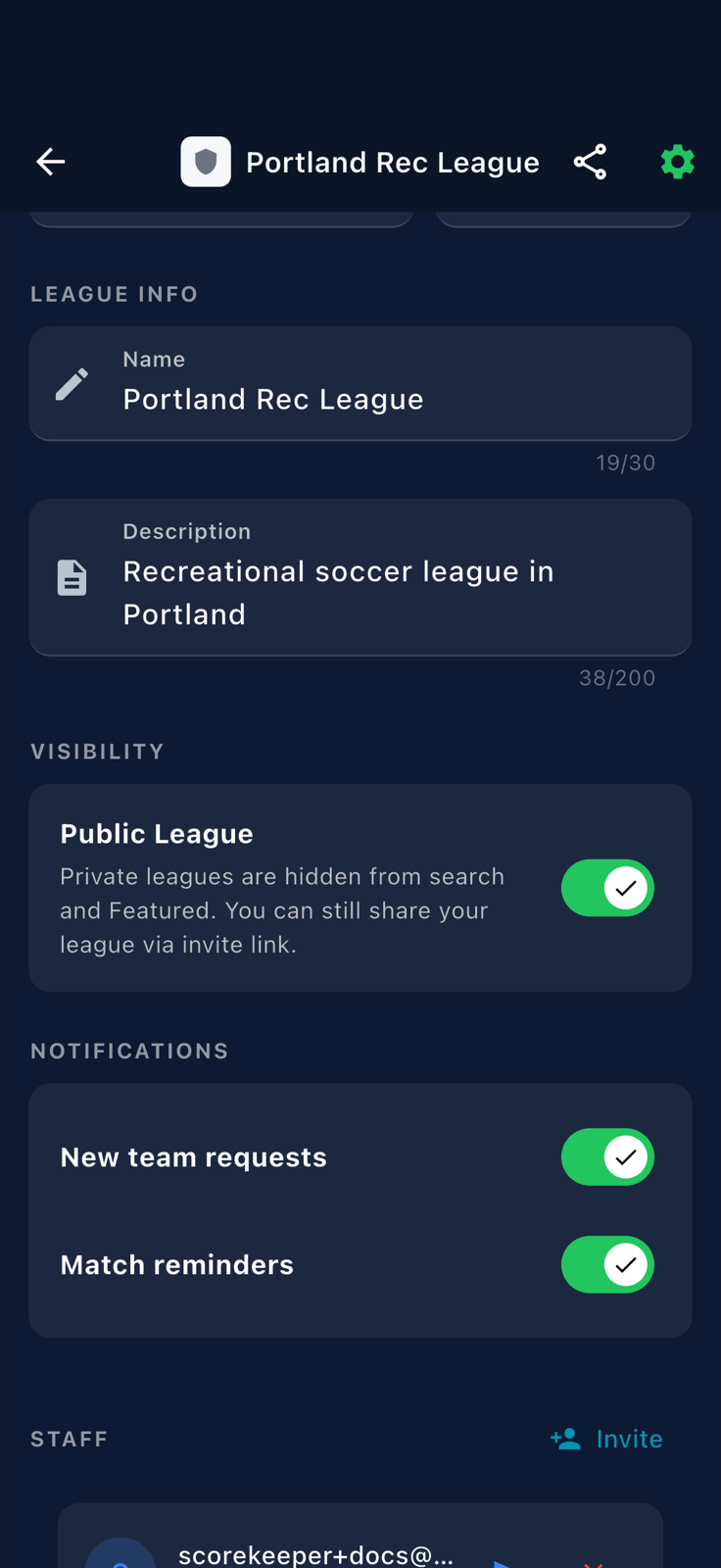
The new row appears in the staff list with a Pendingbadge until the invitee accepts.